
AA Ledger user guide
Create a ledger → record expenses and splits → review balances → pay outside the app and record it → share the bill.
Before you start: trial and permanent access
Open Trial & Permanent Unlock from the home page or About & Help. Actively claim the trial; once Apple verifies it, 168 continuous hours run from the original claim time, not installation or first launch. Time continues offline and there is no automatic renewal. Restore, reinstalling or restoring on another device does not restart seven days from the restoration time.
Permanent access is a one-time purchase and takes priority over the trial. Apple supplies product information and your local price; rely on the purchase confirmation screen. If product loading fails or the trial price is unexpected, claiming cannot proceed; reload or contact support.
| Still available | Valid trial or permanent access required |
|---|---|
| View/audit existing ledgers; export text, images and JSON backups; restore read-only copies; delete whole ledgers; help and Restore Purchases | Create ledgers; add, edit or cancel expenses, refunds and payments; edit ledgers and members |
Expiry does not delete records or automatically cancel payments that actually occurred. Without valid access, restoring a backup creates a viewable copy without editing rights; valid access obtained later permits editing. Whole-ledger deletion still requires the existing confirmation.
Initial claims, purchases and explicit restores need Apple services. Locally verified rights can be evaluated offline, with the trial continuing to run. Refund/revocation status follows Apple updates and may not arrive immediately offline. Closing a payment sheet is not proof of an unlock; check the app’s verified status.
Pending approval grants no new access. Reloading products/access or restoring does not cancel Apple’s pending request. Continue waiting. Only after the approver or Apple confirms the original request was declined or cancelled should you use the separate “I have confirmed the request was declined or cancelled…” action and confirm again, then actively claim or buy again. This only clears the app’s waiting indicator: it does not withdraw an unresolved Apple request, automatically repurchase or grant access.
1. Create a ledger
Name the activity, add recognizable member nicknames and choose one currency: CNY, USD, EUR, HKD or JPY. A ledger cannot directly change currency after records exist. Automatic currency conversion is not provided.
2. Record expenses and choose a split
Enter the title, amount, person who advanced the money and participating members. The payer need not participate. Split multiple people’s advances into separate entries.
- Equal: shared costs.
- Integer shares: different proportions, such as one share and two shares.
- Specified amounts: everyone’s amount must add up to the expense.
Remainders in the smallest currency unit follow fixed allocation rules. Review actual allocations; balancing differences are not hidden.
3. Record an expense refund
Open a refund from the original expense. Choose who actually received the merchant’s refund and how much each member’s share is reduced. “Refund the remainder” fills remaining reducible amounts. An active refund locks the original expense’s financial structure; to correct it, review and cancel related refunds first, edit the expense, then re-enter the refunds as appropriate.
4. Review balance sources
A positive balance is receivable, a negative balance payable, and zero balanced. Net advances and net shares already account for relevant refunds. Transfers sent/received are manually recorded actual payments. You can inspect the underlying entries.
Remaining balance = net advances − net share + transfers sent − transfers received
5. Record an actual payment
Review suggestions, complete the real transfer outside the app, then record its amount. Partial payments and corrections are supported. The app neither transfers money nor verifies bank receipts. Editing an old expense does not automatically delete previous payments; balances are recalculated from current records.
6. Share text or image bills
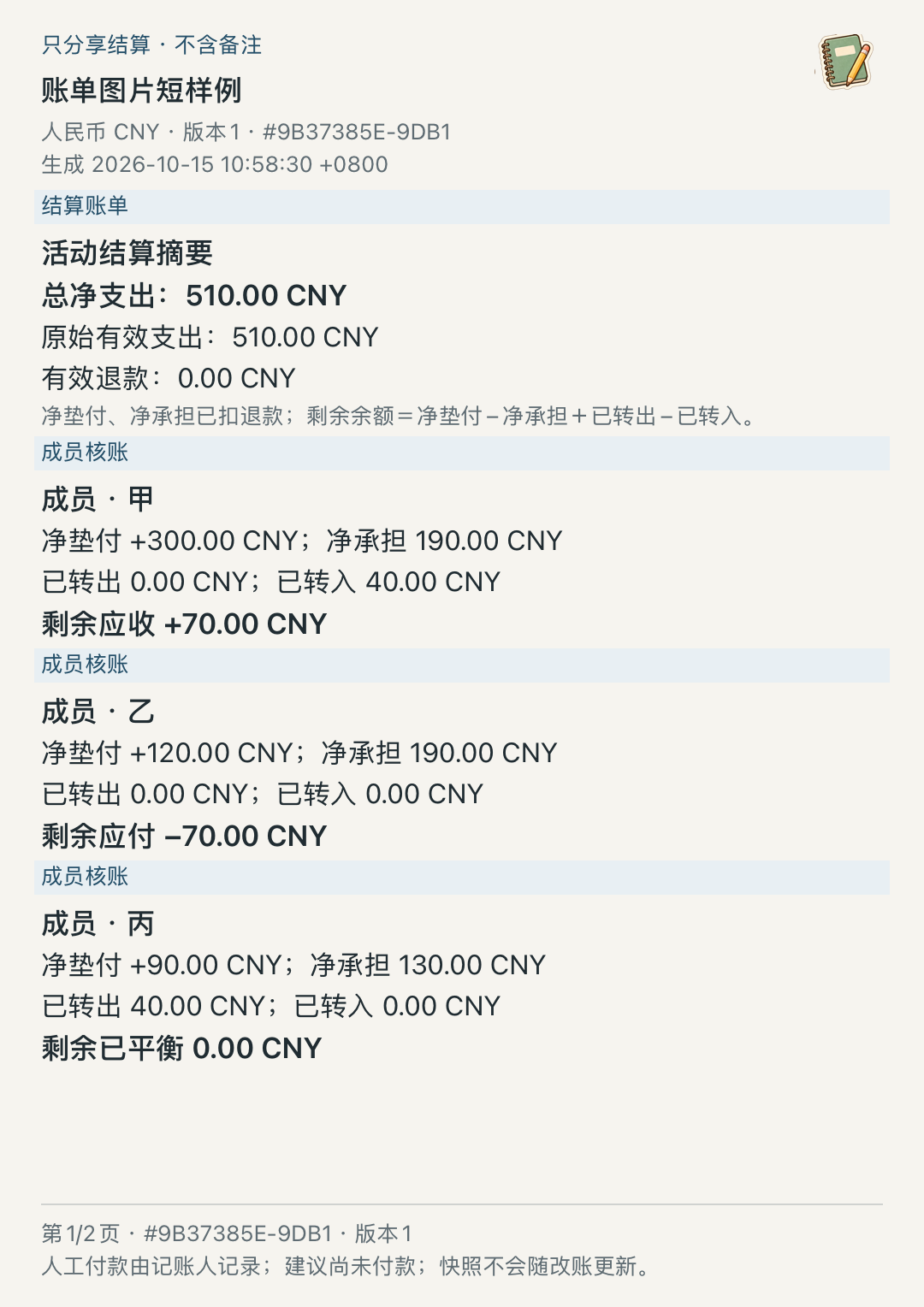
Go to Settlement & Sharing → Bill Preview & Image Export. Choose settlement-only or the full bill, decide whether to include notes, and preview every page before sharing or saving to Photos. Long bills are paginated; text sharing is also available.
Photos requires only add permission. If denied, use system sharing. Regenerate after editing: previously sent copies do not update automatically and are not proof of payment. Capacity limits produce a message; unlimited export is not promised.

7. Back up and restore a copy
Export a backup from the ledger menu. Restore from the ledger list by selecting and previewing a file. It creates an independent copy and retains the original. Shared images cannot restore a ledger. Repeated restoration may create multiple copies; check names and sources.
JSON backups contain complete records without app-provided password encryption. Integrity checks are not confidentiality encryption. Use trusted storage; there is no developer cloud-ledger recovery service.
8. Members and archiving
Deactivate members referenced by history instead of directly removing them; they remain in audit and settlement records. Archiving organizes the list and does not mean a ledger is paid off.
9. A three-person trip example
- A advances CNY 300, split equally among A, B and C.
- B advances CNY 120, split only between A and B.
- C actually pays A CNY 40 and the payment is recorded.
- C advances another CNY 90, split among all three.
| Member | Net advance | Net share | Balance |
|---|---|---|---|
| A | 300 | 190 | Receive 70 |
| B | 120 | 190 | Pay 70 |
| C | 90 | 130 | 0 |
A has already received 40 from C, and C has sent 40, so C is balanced. Once B actually pays A 70 and it is recorded, everyone is balanced. A suggestion is not a completed payment: enter it only after it happens.